
Planning for the Classic SharePoint App deprecation
Starting from April 2nd, 2026, Microsoft is deprecating all classic SharePoint applications, and JungleDocs 365 will be affected. To not lose functionality, we recommend moving to the Modern UI.
First, install the JungleDocs 365 Modern UI add-in. It will replace the classic JungleDocs 365 SharePoint application.
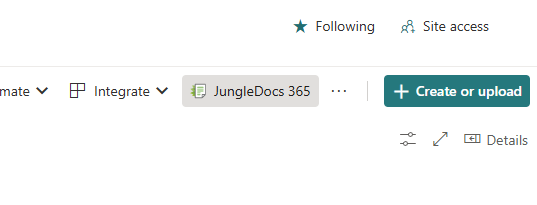
Next, open JungleDocs 365 via the SharePoint list/library ribbon:
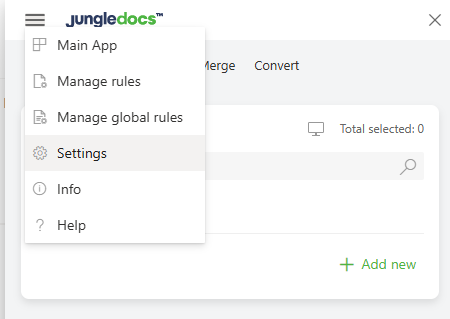
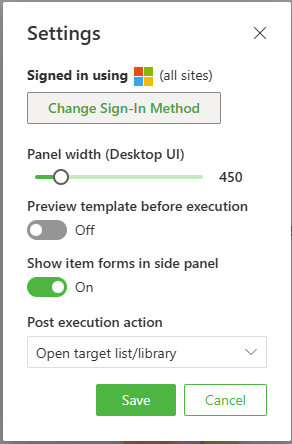
Note: If you already have JungleDocs Modern UI installed, you will need to switch the Sign-in Method inside the settings:
Next, Choose the permission mode you would like to grant to JungleDocs 365.
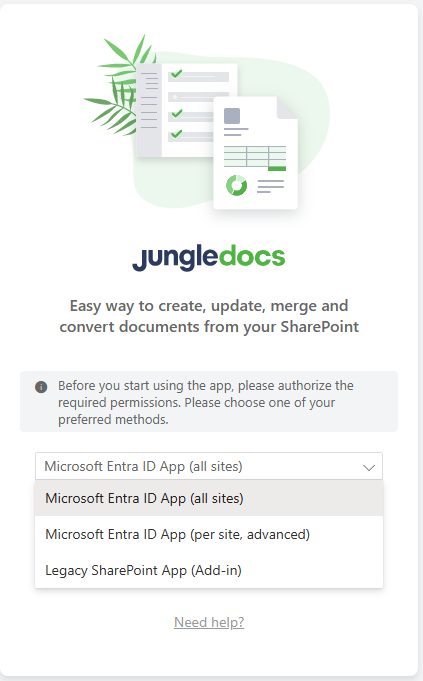 Microsoft Entra ID App (all sites)
 Microsoft Entra ID App (all sites)
The all sites mode is easier to set up, and will grant JungleDocs read and write access to all sites. it is easier to set up initially, but we recommend using the per site mode if you want more control.
 Microsoft Entra ID App (per site, advanced)
 Microsoft Entra ID App (per site, advanced)
The per-site mode will still require the same permission set at first, but a secondary Entra ID app will be used to manage the permissions of the JungleDocs 365 Entra ID app and scope it to certain sites.
It is managed via the Resource Specific Consent model:
To deploy this application, you will need to install the PnP PowerShell module
Why do you need to use PnP PowerShell?
Currently, Microsoft does not provide an interface to manage the sites where the permissions will be applied. Therefore you need to use PnP PowerShell and specify each site separately.
Once installed, run the following command. Remember to replace the placeholder value for the Tenant ID parameter
Register-PnPEntraIDAppForInteractiveLogin -ApplicationName "JD365 SharePoint Connection Permission Manager App" -Tenant *yourTenantIDorURL* -SharePointDelegatePermissions AllSites.FullControl
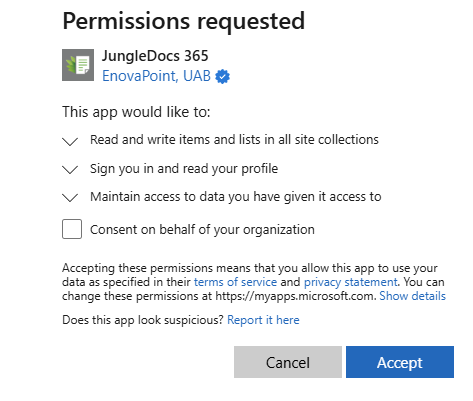
Accept the permissions the app requests:

Once accepted, save the ClientId that gets generated.

Next, using PowerShell, connect to the newly registered application using the generated ClientId value. Make sure to update the domain and clientId values in the below command
Connect-PnpOnline -Url "https://yourtenant.sharepoint.com" -Interactive -ClientId 11111111-1111-1111-1111-111111111111
Grant the permissions. Repeat this step for every site you need to grant the permissions for JungleMail to read.
Grant-PnPAzureADAppSitePermission -AppId "88badeca-9ce5-43a1-b27f-efe764ee0671" -DisplayName "JungleDocs 365 permissions management" -Permissions Manage -Site "https://yourtenant.sharepoint.com/sites/yoursite"